
SSTTX All Solutions

Meet Our Solutions

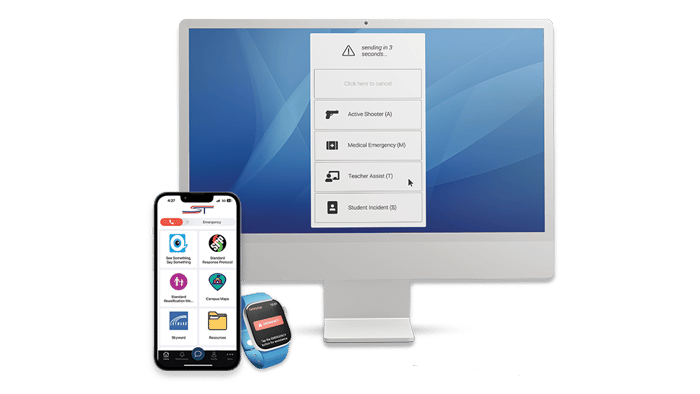
The School of Science and Technology is equipped with new safety tools including the mobile safety app ‘CampusShield’ and Computer Panic Buttons, designed to strengthen overall security. When you activate these tools, they alert the right people, share detailed information about the incident, and ensure help arrives quickly and efficiently. 

Learn More About Your New Safety Tools

CampusShield
Computer Panic Button

school-of-science-and-tech-3-phone-mockup

CampusShield

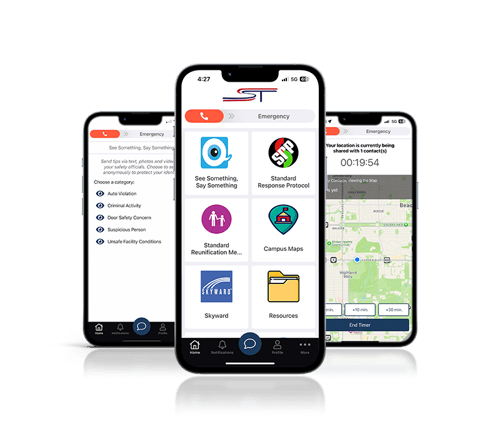
CampusShield is a comprehensive tool for emergencies and everyday safety needs, with panic alerts, live location sharing, two-way communication, and real-time notifications you can access from any iOS or Android mobile device, making it easy to get help, report safety concerns, and stay informed.

Get to Know CampusShield

Easy to Follow Training Guide

Learn how to download, set up, and use CampusShield to help you stay safe and informed. This video explains the app’s key features so you can use it with confidence.

Key Features

Panic Button

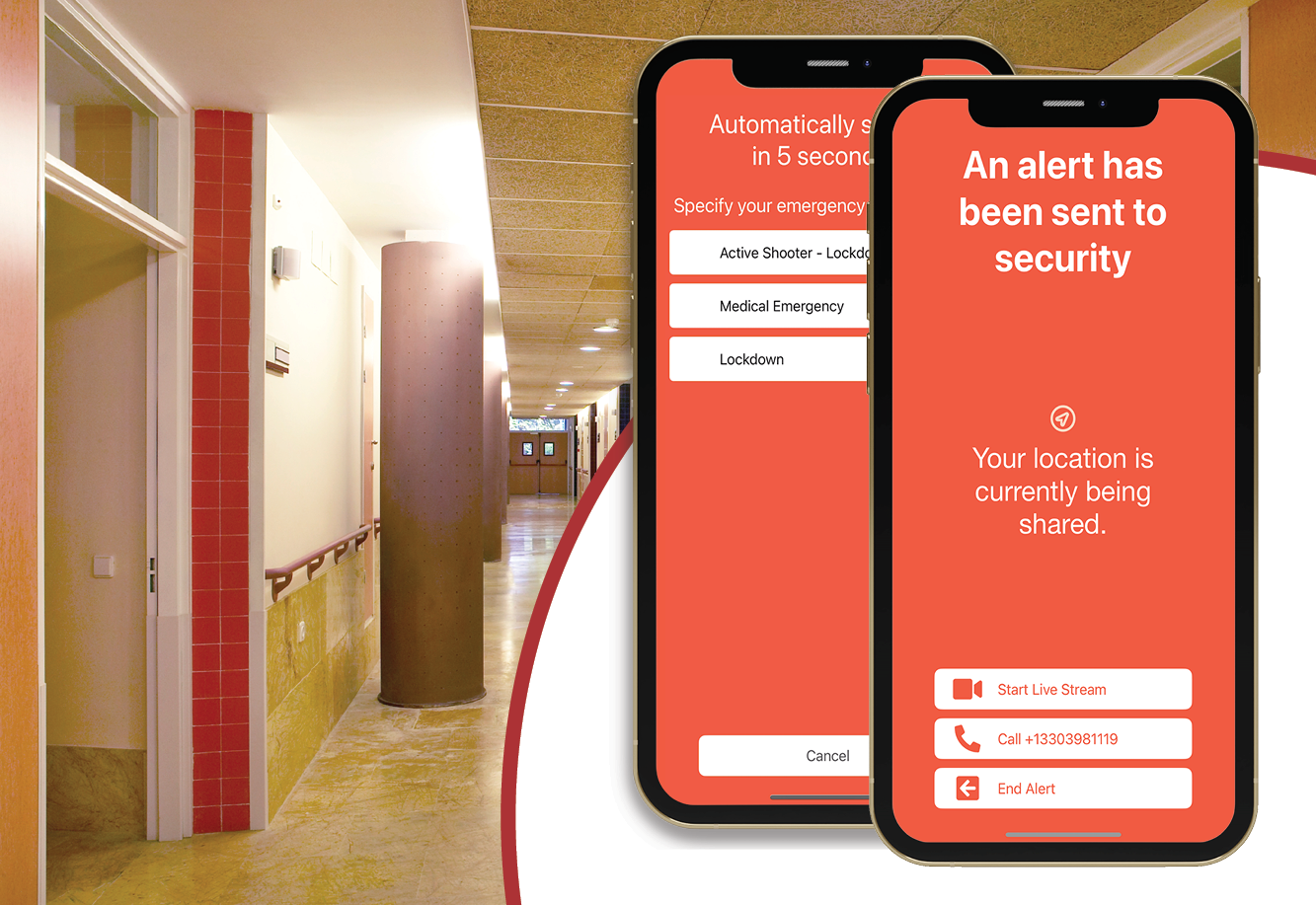
The panic button is a simple sliding bar you can activate from the app, a Lock Screen widget, or your smartwatch. Just swipe to discreetly send an alert during a critical incident, sharing your real-time location with security or emergency responders. You can select an incident type to ensure you receive the best response possible and, after sending the alert, choose to enable audio and video streaming to provide responders with details as the incident evolves.
SSTTX Panic Button

See Something, Say Something

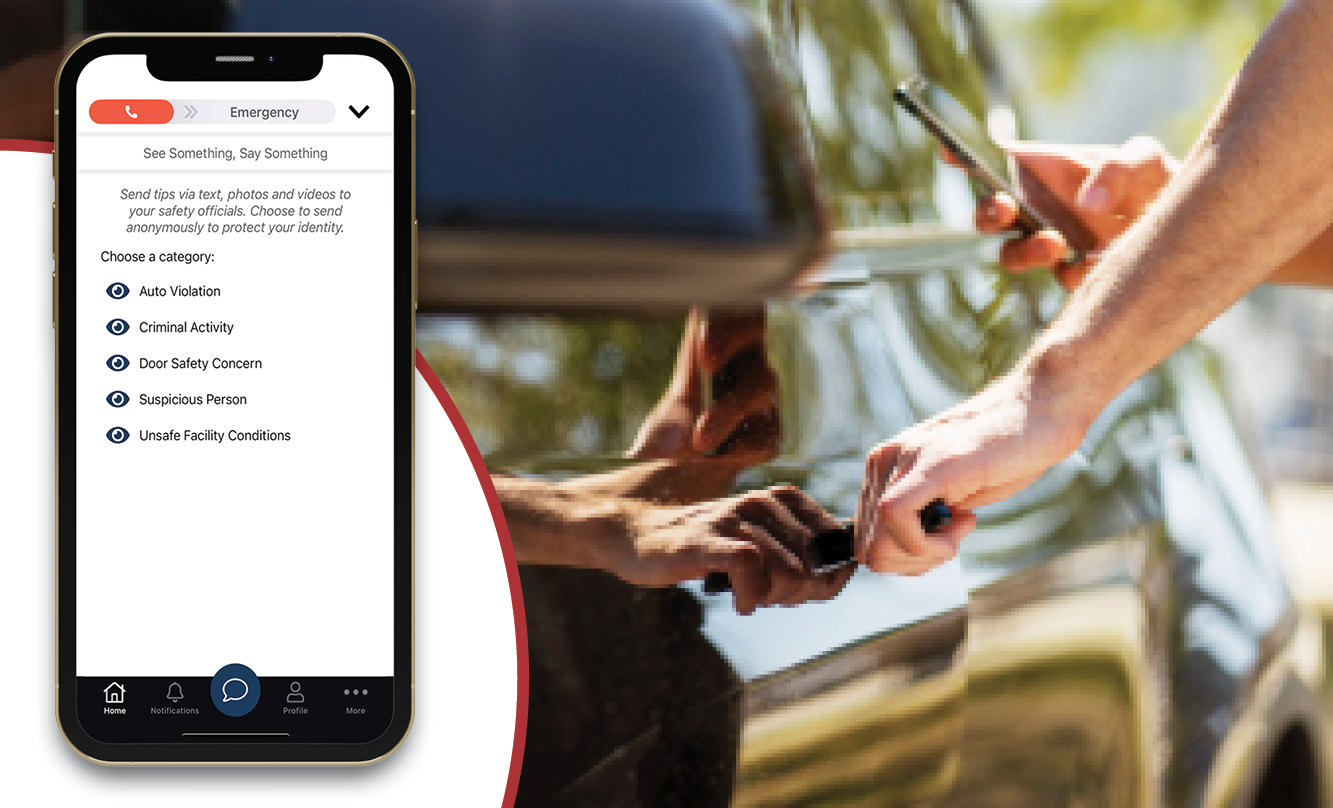
With the See Something, Say Something feature, you can share non-emergency safety concerns, suspicious behavior, or other issues directly with your administrators or safety response teams. You can even submit tips anonymously. Tips can include images, videos, a description of what’s happening, and your location to help make sure the issue is addressed quickly and appropriately.
 

SSTTX See Something Say Something

FriendWatch

FriendWatch is your personal check-in tool for situations where you feel unsafe or at risk. To use it, click ‘Activate’ in the app, choose who you want to notify and share your location with, and add details about your activity and an estimated duration. While active, your chosen contact can see your location and track your progress. You can add time, end the timer early, or mark yourself as safe at any time. If the timer expires, your contact will be alerted that you may need assistance and will receive your last known location.
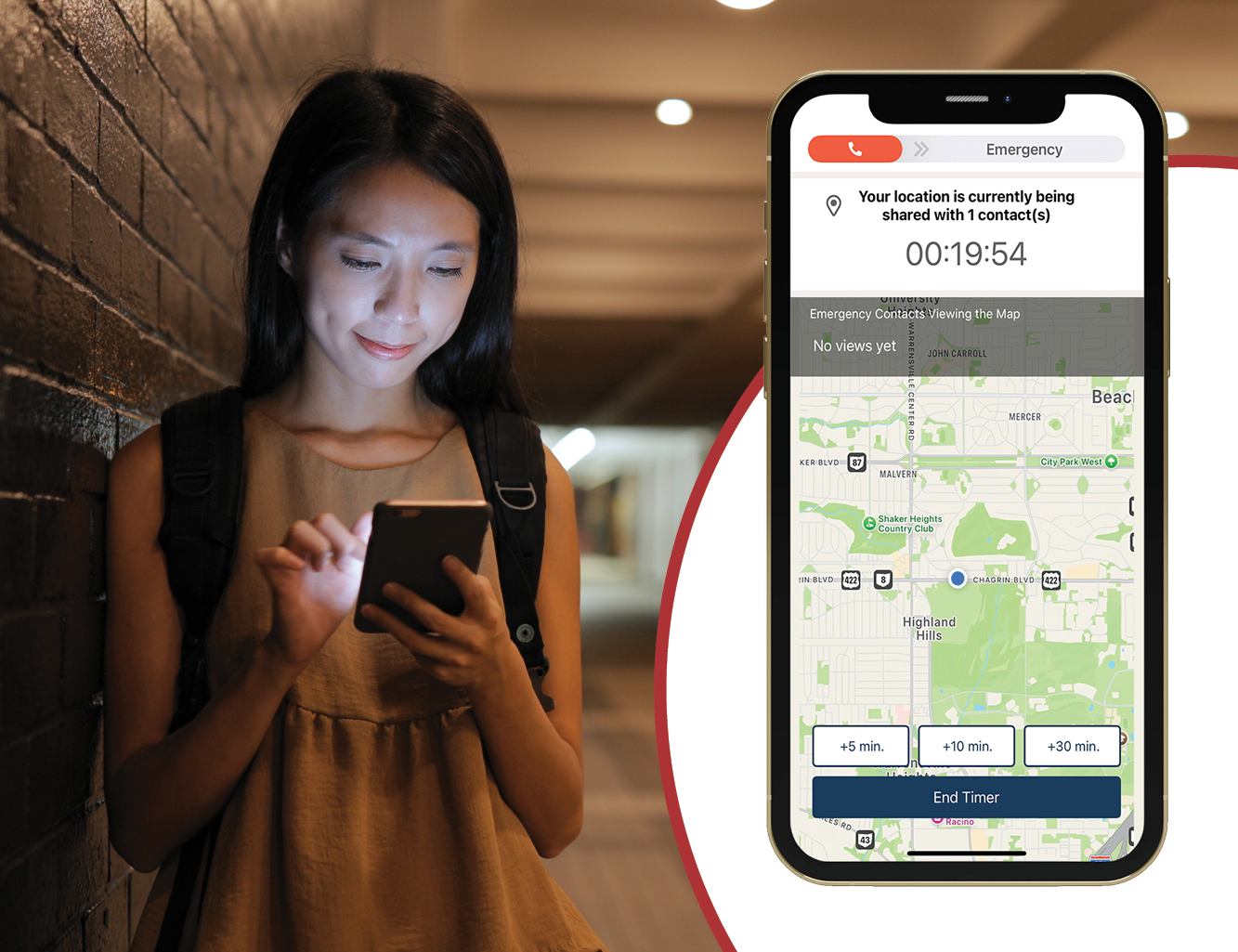
SSTTX FriendWatch

Emergency Protocols and Resources

The Standard Response Protocol, Standard Reunification Methods, and Resources sections are features that provide key safety information for your organization. Use the Standard Response Protocol section to access key guidance on how staff and students should respond during emergencies. The Standard Reunification Method tile provides to procedures needed to reunite students and parents following incidents. The Resources section provides quick access to these safety policies and other valuable information, ensuring you always know where to turn when you need assistance.
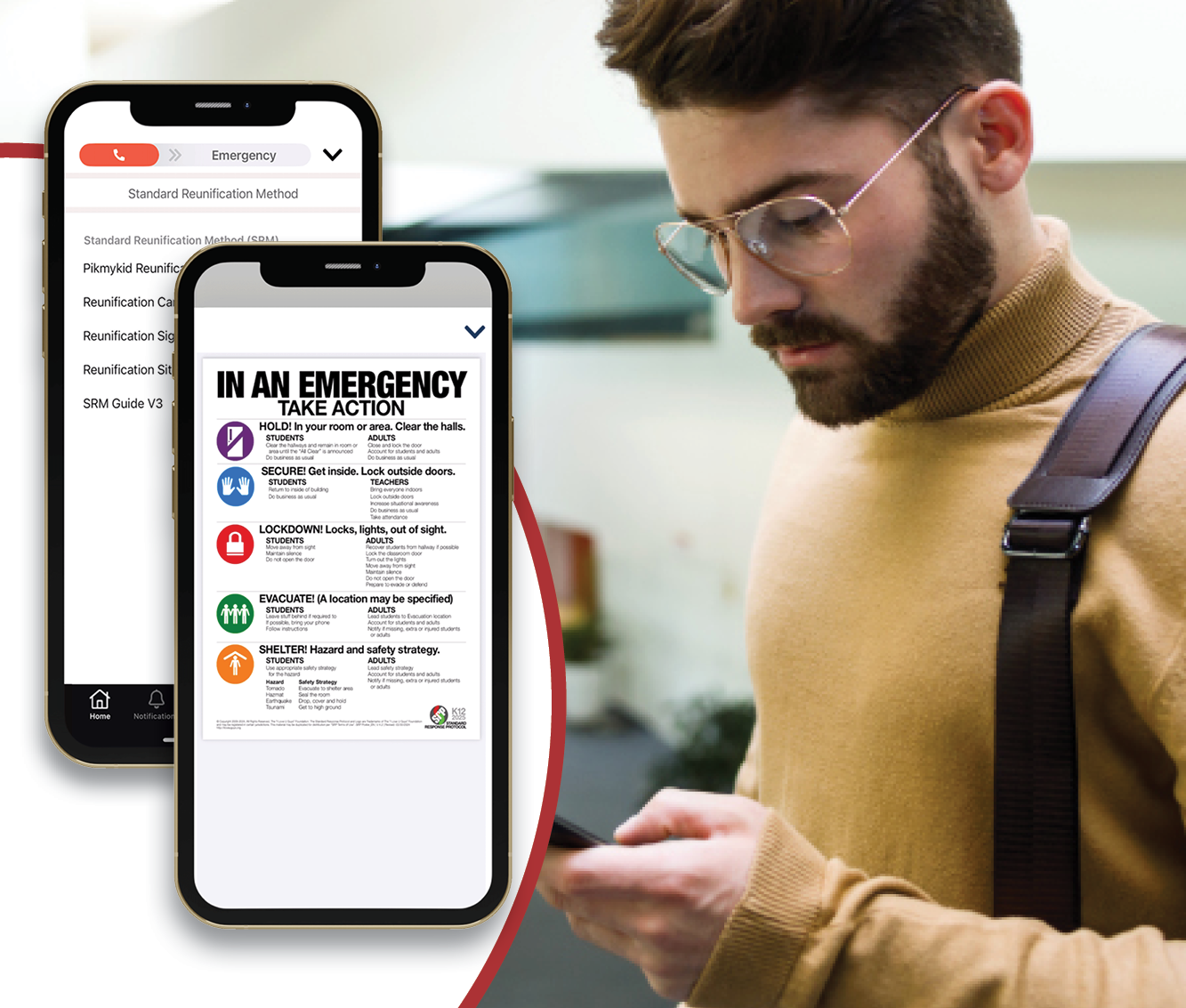
SSTTX Protocols

Campus Map and Area Map

The Campus Map and Area Map sections are features that provide key safety information for your organization. The Campus Map section provides quick access to a map of each School of Science and Technology building. Use the Area Map to view important places marked by your school or facility, such as parking areas, popular facilities, or locations where a crime has been previously reported.
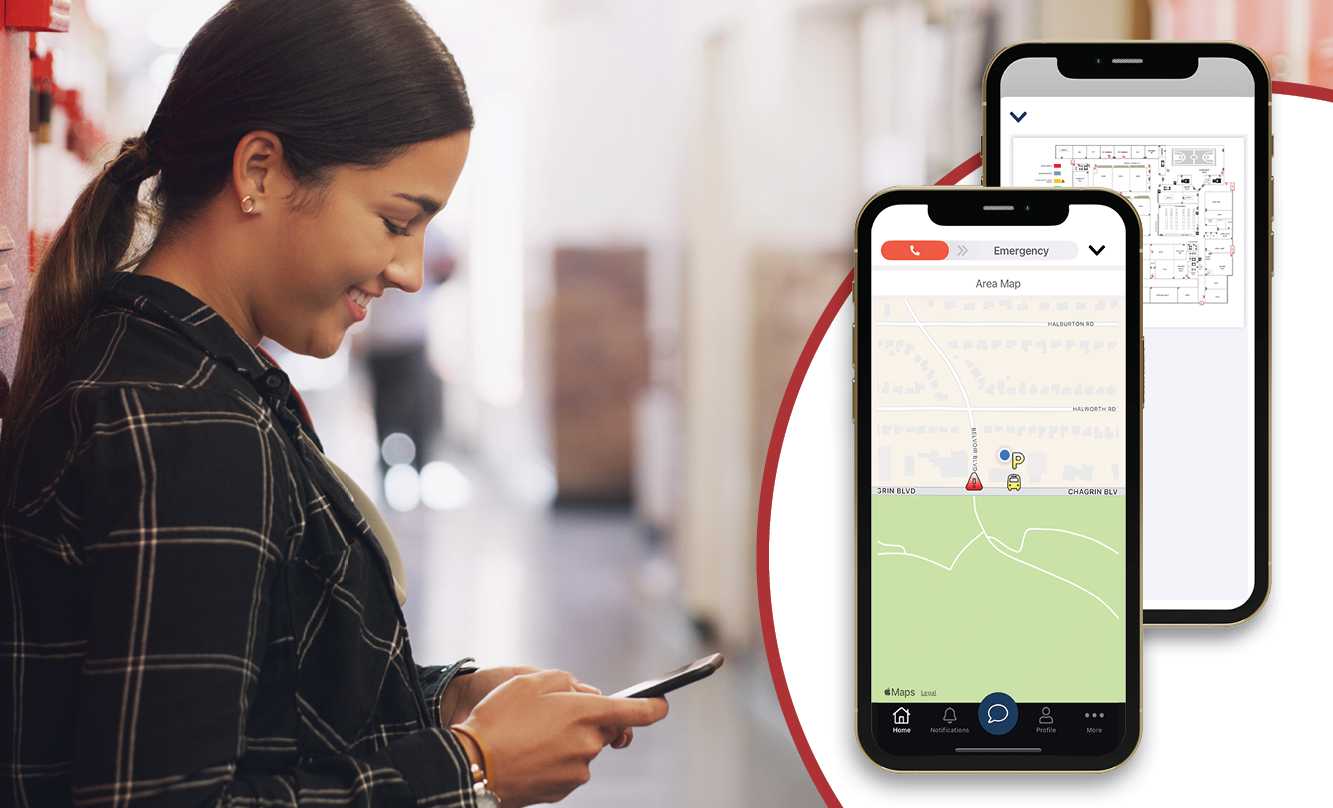
SSTTX Maps

Frequently Asked Questions

Is CampusShield always tracking my location?

No. The app never passively tracks your location. It only uses your location when you active an alert or turn on a safety timer. As soon as the alert is cleared or the timer ends, location tracking stops immediately.

What if I don’t allow location access?

If you don’t give location permission during set up, the app won’t be able to share your location with responders. If you activate a panic alert, it will prompt you to call 911 directly since it can’t send your location automatically.

Should I allow the app to send notifications?

Yes. Make sure to allow notifications so you don’t miss any important safety alerts, updates, or messages from your organization.

Does CampusShield need Bluetooth access?

Yes. Bluetooth access is necessary for the app to work as intended. Without it, some features won’t function properly.

I have another question. Who should I ask?

Please reach out to your designated School of Science and Technology administrators with any additional questions about using CampusShield.

ssts-cpb

Computer Panic Button

The Computer Panic Button lets you quickly and discreetly send an emergency alert straight from your computer using preset hot keys and gives you the option to choose an incident type, making sure the right team responds to your situation without delay.


Get to Know Your Computer Panic Button

What You Should Know

Learn how to use the Computer Panic Button to quickly send an emergency alert right from your desktop. This video shows you how to activate it using your hot keys and how to choose an incident type to make sure the right team gets the right information fast.


Key Features

Hot Keys

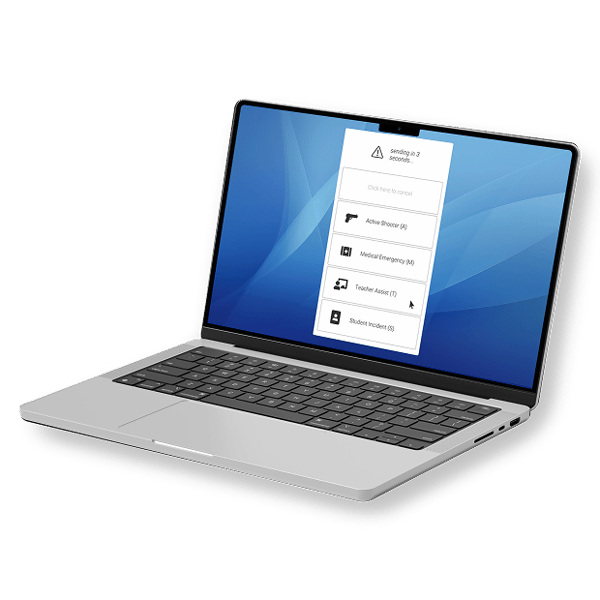
Quickly send an emergency alert right from your keyboard using hotkeys set up just for your team. Once you press the hot keys (Alt + Backspace on Windows and Option + Delete on Mac), a 5-second countdown starts before the alert goes out, giving you a moment to cancel in case you trigger it by accident.

 

SSTTX Hot Keys

Incident Type Selection

After activating the button, select from a list of incident types so the right internal or external teams can respond quickly with the right support. From an active threat to a medical emergency and anything in between, the Computer Panic Button will ensure a quick response.
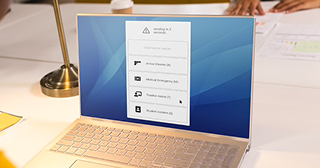
 

SSTTX Incident Type Selection

Two-Way Audio/Video Streaming

Once activated, the Computer Panic Button can stream live audio and video from your device to designated responders. This added context helps security understand what’s happening in real time and respond more effectively. Streaming automatically stops once the incident is resolved.
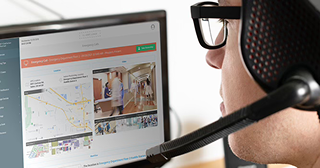
 

SSTTX Audio/Video Streaming

Frequently Asked Questions

Will anyone hear me activate the panic button?

No. Your alert is sent silently but immediately to responders. It doesn’t make any noise that would alert others nearby.

Does the panic button track my computer activity?

No. It does not monitor what you’re doing on your computer. Even when activated, it will only share your location, contact information, incident type, and, if activated by your administrative team, an audio and video stream from the computer's webcam.

Can I customize the hot keys?

Hot keys are usually set by your administrator. If you aren’t sure what they are, check with your IT team or security admin.

Do I have to choose an incident type?

No. If you do not select an incident type, your Computer Panic Button will send the highest level alert available after the countdown ends.

I have another question. Who should I ask?

Please reach out to your designated School of Science and Technology administrators with any additional questions about using the Computer Panic Button.