
Meet Our Solutions
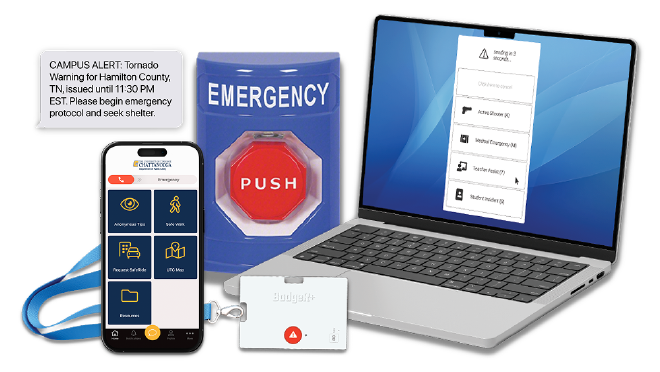
The University of Tennessee Chattanooga is equipped with a comprehensive suite of safety tools designed to strengthen overall security. When you activate these tools, they alert the right people, share detailed information about the incident, and ensure help arrives quickly and efficiently.
Learn More About Your New Safety Tools:
Safe@UTC
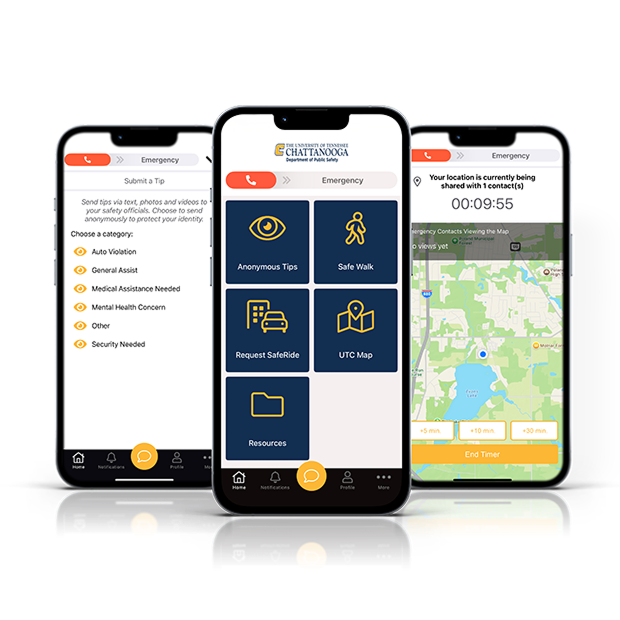
The Safe@UTC app is a comprehensive tool for emergencies and everyday safety needs, with panic alerts, live location sharing, two-way communication, and real-time notifications you can access from any iOS or Android mobile device, making it easy to get help, report safety concerns, and stay informed.
Get to Know Safe@UTC

Easy to Follow Training Guide
Learn how to download, set up, and use the Safe@UTC app to help you stay safe and informed. This video explains the app’s key features so you can use it with confidence.
Key Features

Panic Button
The panic button is a simple sliding bar you can activate from the app, a Lock Screen widget, or your smartwatch. Just swipe to discreetly send an alert during a critical incident, sharing your real-time location with security or emergency responders. You can select an incident type to ensure you receive the best response possible and, after sending the alert, choose to enable audio and video streaming to provide responders with details as the incident evolves.

Anonymous Tips
With the Anonymous Tip feature, you can share non-emergency safety concerns, suspicious behavior, or other issues directly with your administrators or safety response teams. You can even submit tips anonymously. Tips can include images, videos, a description of what’s happening, and your location to help make sure the issue is addressed quickly and appropriately.

Safe Walk
The Safe Walk timer is your personal check-in tool for situations where you feel unsafe or at risk. To use it, click ‘Activate’ in the app, choose who you want to notify and share your location with, and add details about your activity and an estimated duration. While active, your chosen contact can see your location and track your progress. You can add time, end the timer early, or mark yourself as safe at any time. If the timer expires, your contact will be alerted that you may need assistance and will receive your last known location.

Resources and UTC Map
The UTC Map and Resources sections are features that provide key safety information for your organization. Use the map tile to view important places marked by your school, such as security offices, popular facilities, or locations where a crime has been previously reported. The Resources section provides quick access to essential phone numbers, safety policies, and other valuable information, ensuring you always know where to turn and who to contact when you need assistance.
Frequency Asked Questions
Is Safe@UTC always tracking my location?
What if I don’t allow location access?
Should I allow the app to send notifications?
Does Safe@UTC need Bluetooth access?
BadgeR+
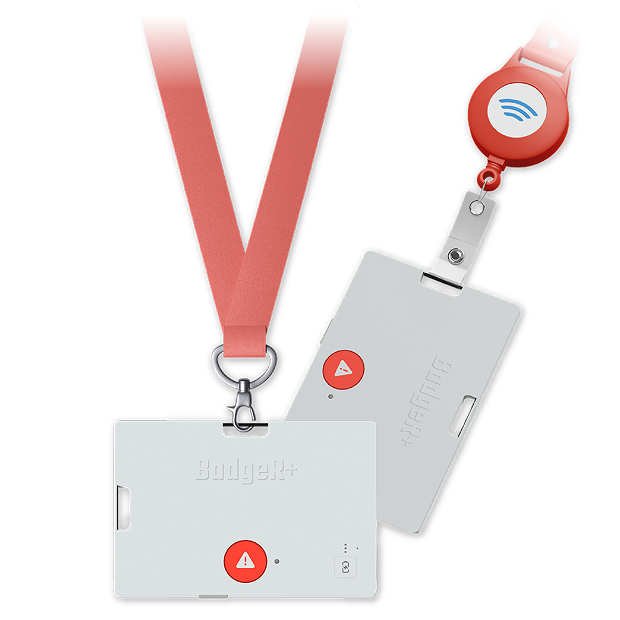
BadgeR+ is a discreet, wearable panic button that lets you quickly request assistance with the press of a button, no matter where you are in your facility. It’s slim and lightweight, can be worn vertically or horizontally on a lanyard or badge reel, and can be hidden behind your existing ID badge. BadgeR+ offers customizable ways to activate it and provides haptic feedback to let you know that your alert was sent successfully.
Get to Know Your BadgeR+
Using Your BadgeR+
Learn how to use your BadgeR+ wearable panic button to discreetly request assistance. This video covers how to activate an alert, how you know an alert was successfully sent, what happens after activating an alert, and how to ensure the device is always ready when you need it.
Key Features

Activating a Panic Alert
The BadgeR+ offers three ways to activate it: single click, double click, and press-and-hold. Each activation method allows for unique actions. This means that an alert triggered by a single click can notify different individuals and send different content compared to alerts triggered by double click or press-and-hold.

Haptic Feedback
When you press the BadgeR+ panic button, you’ll feel a gentle vibration that confirms your alert has been sent successfully. This built-in features gives you peace of mind, confirming help is on the way.

Audio Streaming
Once activated, BadgeR+ streams live audio from your surroundings to your designated responders. This extra context helps them understand what’s happening in real time and respond more effectively to your situation. Audio streaming automatically stops once the incident is resolved.

Location Tracking
When you activate the BadgeR+, your location is shared with emergency responders, with up-to-floor and room number level accuracy, using your facility’s WiFi access points and BLE beacons. This information helps responders locate you quickly and deliver assistance without unnecessary delays. Location tracking stops as soon as the incident is resolved.

Rechargable Battery
BadgeR+ features a rechargeable battery that lasts about six months on a single charge, with a USB-C port for easy charging. To check the battery level, press the Battery Button and look at the three lights beside it: all three lights indicate the device is 75%-100% charged, two lights mean 50%-74%, one light means 15%-49%, a flashing light indicates below 15% and requires immediate charging, and no lights mean the battery is fully drained.
Frequency Asked Questions
How do I know my BadgeR+ is connected and ready to use?
Does the BadgeR+ always record audio?
How do I charge my BadgeR+?
How do I know if my BadgeR+ needs charged?
Is the BadgeR+ always tracking my location?
Computer Panic Button
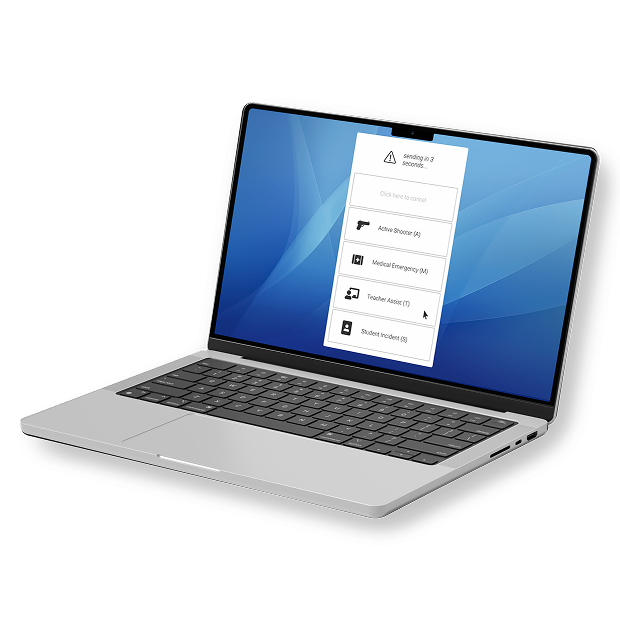
The Computer Panic Button lets you quickly and discreetly send an emergency alert straight from your computer using preset hot keys and gives you the option to choose an incident type, making sure the right team responds to your situation without delay.
Get to Know Your Computer Panic Button
What You Should Know
Learn how to use the Computer Panic Button to quickly send an emergency alert right from your desktop. This video shows you how to activate it using your hot keys and how to choose an incident type to make sure the right team gets the right information fast.
Key Features

Hot Keys
Quickly send an emergency alert right from your keyboard using hotkeys set up just for your team. One you press your hot keys (ALT and Backspace for PCs, or Option and Delete for Macs) a 5 second countdown starts before the alert goes out, giving you a moment to cancel in case you trigger it by accident.

Incident Type Selection
After activating the button, select from a list of incident types so the right internal or external teams can respond quickly with the right support. From an active threat to a medical emergency and anything in between, the Computer Panic Button will ensure a quick response.

Two-Way Audio/Video Streaming
Once activated, the Computer Panic Button can stream live audio and video from your device to designated responders. This added context helps security understand what’s happening in real time and respond more effectively. Streaming automatically stops once the incident is resolved.
Frequency Asked Questions
Will anyone hear me activate the panic button?
Does the panic button track my computer activity?
Can I customize the hot keys?
Do I have to choose an incident type?
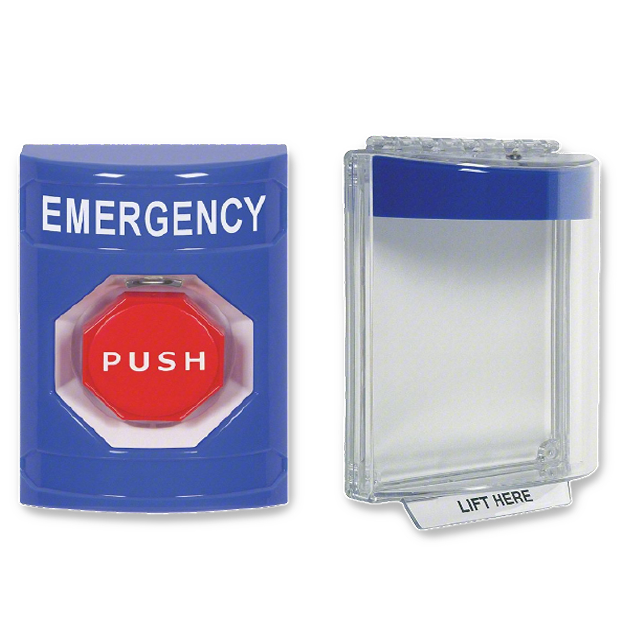
Wall-Mounted Panic Button
The Wall-Mounted Panic Button is a wireless, easy-to-spot safety device that allows anyone to request help in common areas quickly. You will find these devices in hallways, classrooms, and other common areas around campus.
Key Features

Easy to Use, High-Visibility Design
If something happens and you need help fast, the bright red Wall-Mounted Panic Button is easy to use. Simply lift the lid from the bottom and firmly press the red button to alert emergency responders to an emergency.

Automatic e911 Calling
When activated, the system can automatically contact the appropriate emergency responders, adding an extra layer of safety and ensuring the right people are alerted immediately.

24-Hour Check-Ins
The Wall-Mounted Panic Button automatically checks in every 24 hours to confirm it’s working correctly, so you can feel confident it will be ready to send an alert if you need help. This built-in check means you don’t have to worry about whether the button is working, you can trust it’s close by to keep you and your space safer.
Frequency Asked Questions
Can the button be accidentally pressed?
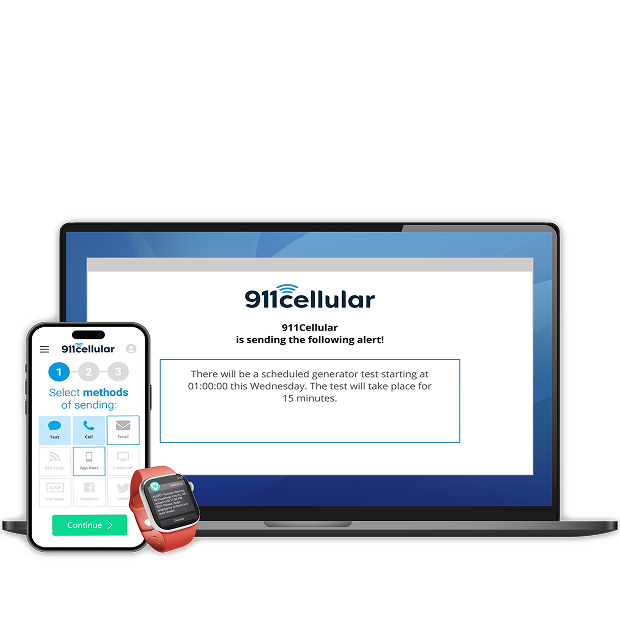
Emergency Notification System
The Emergency Notification System keeps you informed and safe by sending important alerts and clear instructions across multiple channels during emergencies or other critical events. Messages are integrated with other safety tools and software. For example, alerts may appear as push notifications from the Mobile Safety App rather than taking over your entire screen, depending on how your system is set up.
Key Features

Get Critical Updates Instantly
During an emergency, you’ll receive critical alerts by text, voice call, or email with information about what’s happening and how to stay safe. Messages are sent to a select group or thousands of recipients across your entire facility within minutes, making sure everyone stays informed.

Screen Takeover Alerts
Receive urgent desktop notifications about incidents. This feature lets administrators send important messages directly to your screen so you never miss critical updates. The alert will appear as a large pop up window that can be dismissed once you have read the alert.

Are you SAFE?
During an emergency, administrators can send a prompt to all Mobile Safety Apps and Computer Panic Buttons asking, ‘Are you safe?’ You’ll be able to respond by selecting ‘Yes’ or ‘No,’ helping your safety team understand where people are safe and identify areas that may need immediate attention.

Weather Alerts
If severe weather is approaching, you may receive alerts through text, voice call, or email with important updates and instructions, such as tornado warnings, shelter-in-place notices, or school closures. These alerts are sent through the Emergency Notification System to help keep everyone in your facility informed and prepared to act accordingly.